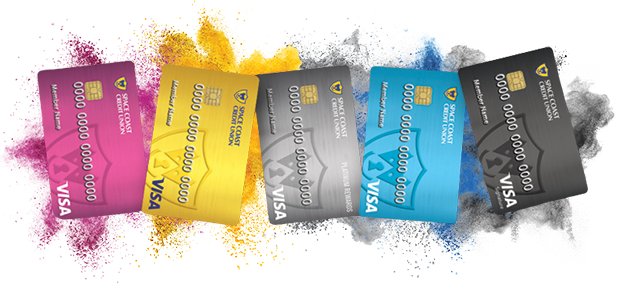
Pay faster. Carry less. Stay secure.
Add your SCCU debit or credit card to Apple Pay®, Google Pay™, or Samsung Pay® to make fast and secure purchases in stores, apps, and online.
The security and convenience of a totally digital checkout experience is now available for all cardholders! It's simple — just add your SCCU Visa® card to your smartphone's mobile wallet for an easy and secure way to make contactless payments.
As a reminder, SCCU Team Members will never contact you to verify your debit or credit card's CVV number (3 digits on the back of your card), full 16-digit card number, or your Online & Mobile Banking credentials (username and password). If you receive a call requesting such information, or any other sensitive personal or financial information, please disconnect and call us directly at (800) 447-7228.
You can make a payment with your phone anywhere you see these symbols!



Where You Can Use Digital Wallets

How to Set Up Digital Wallet on Apple Pay
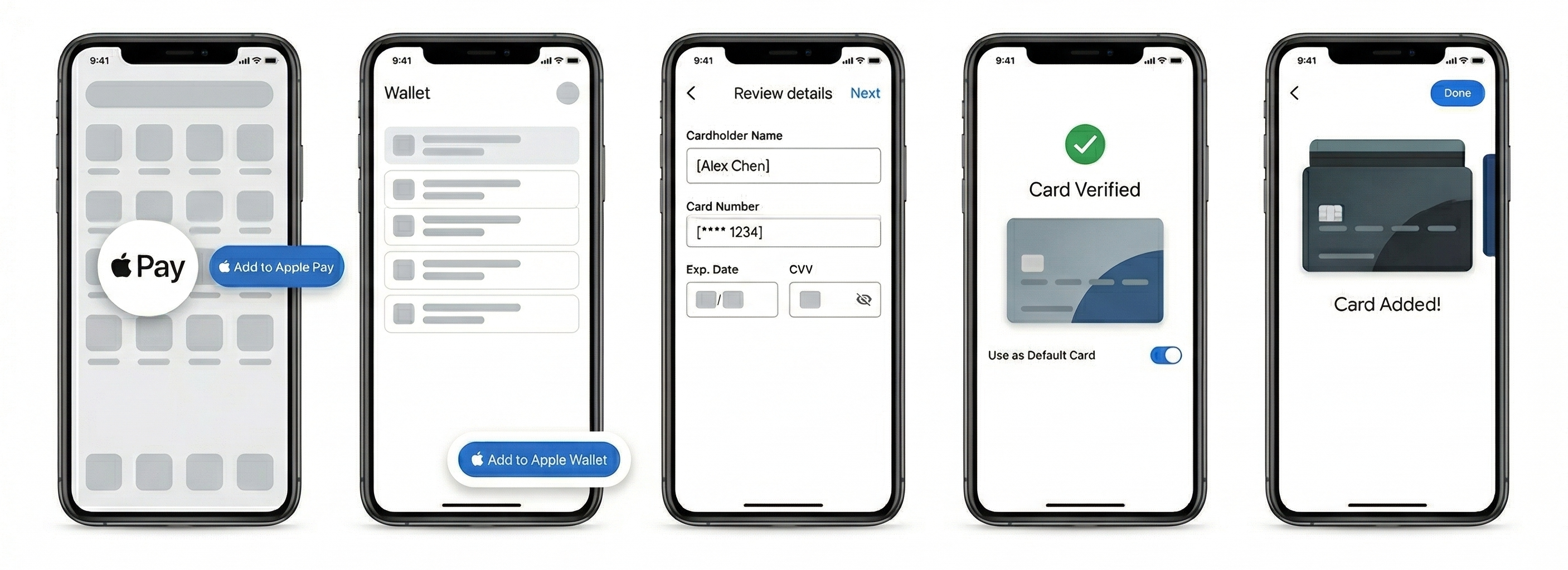
1. Tap "Add to Apple Pay" on your dashboard.
2. Tap "Add to Apple Wallet."
3. Review card details, then tap "Next."
4. Tap "Use as Default Card."
5. Tap "Done" to return to the app.
You're all set! You'll see "Added to Apple Wallet" underneath your card.
How to Set Up Digital Wallet on Google Pay
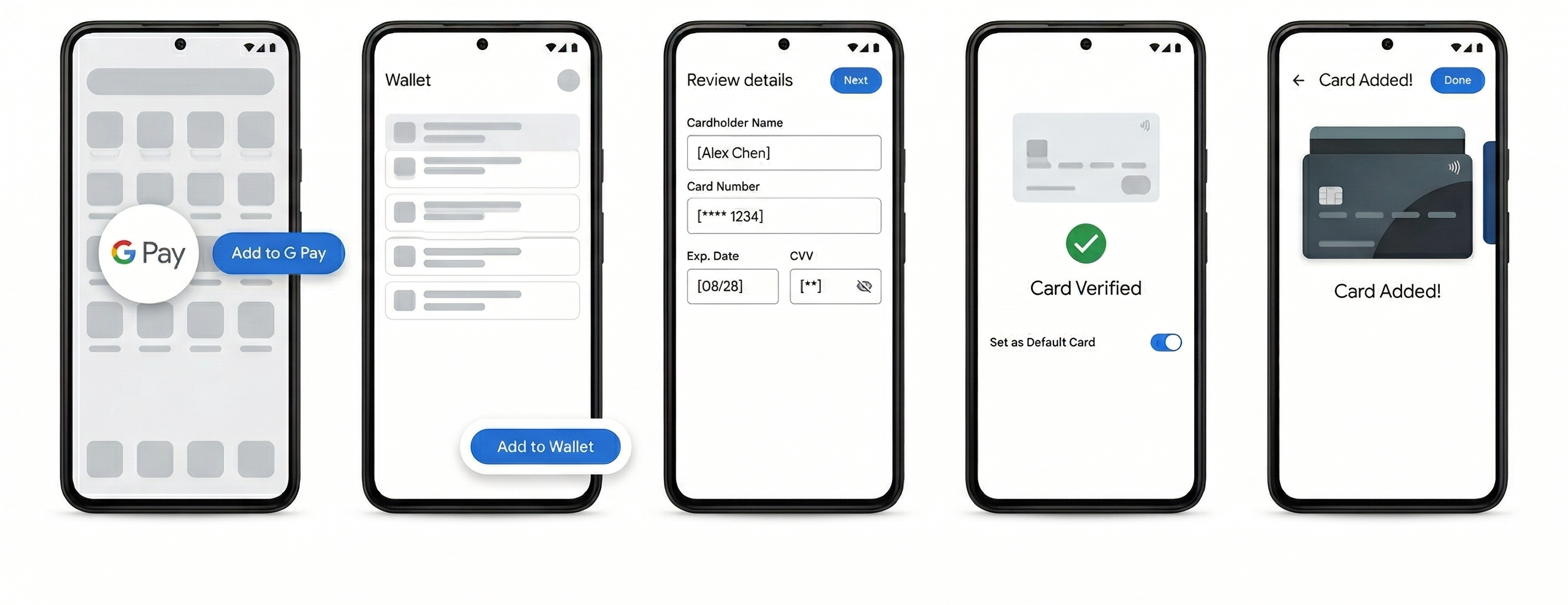
1. Tap "Add to Google Pay" on your dashboard.
2. Tap "Add to Google Wallet."
3. Review card details, then tap "Next."
4. Tap "Use as Default Card."
5. Tap "Done" to return to the app.
You're all set! You'll see "Added to Google Wallet" underneath your card.
How to Set Up Digital Wallet on Samsung Pay
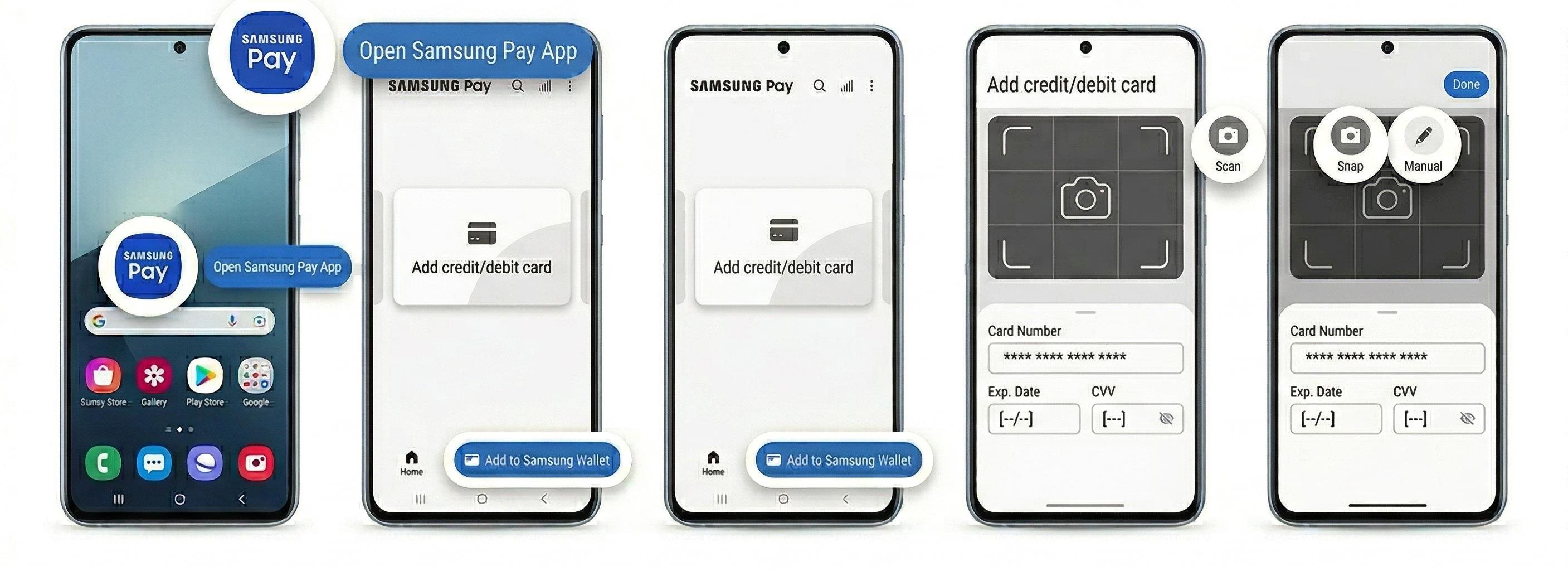
1. Open the Samsung Pay® app on your phone.
2. Choose "Add credit/debit card."
3. Snap a picture or enter the details manually.
You're all set! Follow the prompts to verify and start using Samsung Pay.
FAQs
▸ What is a digital wallet and how does it work?
It’s a place to store your SCCU card on your phone or smartwatch so you can pay without carrying your physical card. When you pay, your device securely sends a digital version of your card to complete the purchase.
▸ Why should I use a digital wallet?
They make paying faster and more convenient. You can check out quickly, leave your wallet at home, and enjoy added security features built into your device when shopping in stores, online, or in apps.
▸ Is there a fee to use my SCCU card in a digital wallet?
No. SCCU doesn’t charge a fee to add or use your eligible card in a digital wallet.
▸ How are digital wallets more secure?
Digital wallets don’t share your actual card number with merchants. Instead, they use a unique digital number for your device along with security features like passcodes, fingerprints, or face recognition.
▸ Where can I use a digital wallet (in-store, online, or in-app)?
You can use your digital wallet in stores that accept contactless payments, online at participating websites, and within apps that support digital wallet checkout.